Getting started
What you need before the first start, what happens when the desk opens, and how paper and live trading work.
What you need
- A Windows PC. The desk is a Windows desktop application.
- An Alpaca market-data key. The scanner, the lists and the chart run on Alpaca's market data, using your own key and your own data plan. You choose the feed (SIP or IEX) in the credentials window.
- A broker account with API access for live orders. In this build the desk sends orders to TradeZero or Alpaca. Other brokers appear in the list with their details on file, but cannot place orders from the desk.
- Room on screen. The desk was designed for a wide screen or more than one monitor. See fitting the desk on your screen.
You do not need a broker account to try the desk: paper mode trades against the live prices with a virtual wallet, and no order reaches a broker.
The first start
Before the desk opens, the Risks and disclaimers window appears. Read it, tick the box confirming you understand that your stops are software stops, and press I AGREE - OPEN THE DESK. QUIT closes the program. You can read the same text again any time with the RISKS button in the header.
The desk always opens in paper mode, with SYSTEM: OFF and every automatic entry engine disarmed. Nothing trades by itself when the program starts.
Entering your keys
- Press BROKER (right end of the WINDOWS row) and pick your broker from the dropdown. Only brokers marked EXECUTES can send orders.
- Press CREDENTIALS....
- In DATA, enter your Alpaca API key and secret and the feed (
siporiex). Press TEST DATA to check that the feed answers with that key. - In EXECUTION, fill in the fields your broker needs. For Alpaca these are the trading key, secret and whether it is a paper account; paper and live Alpaca keys are different pairs. Press TEST BROKER to check the account is reachable.
- Press SAVE. The broker choice applies straight away; new keys are used from the next start.
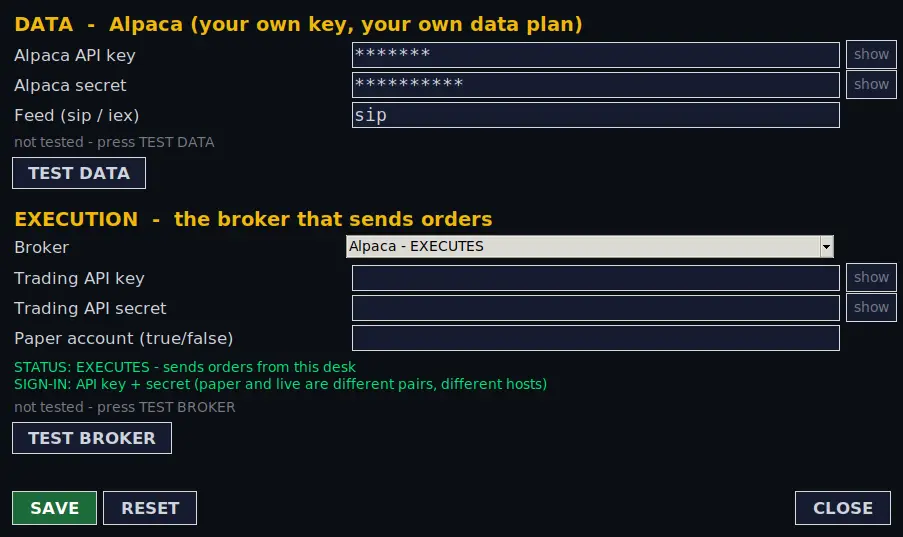
Keys are saved in a settings file on your own PC. Testing never saves anything. More detail is on the broker, keys and settings page.
Paper mode
With PAPER: ON (the default), every entry and exit fills inside the software against the live prices, paid from a virtual wallet. Nothing reaches your broker.
- The wallet starts at $1,000 with 6x buying power. While paper is on, click the Equity label in the header to load a different balance.
- Paper trades go to their own paper journal, kept apart from real trades.
- Locates are not needed in paper: every scanner symbol can be shorted.
- Risk discipline (daily loss caps, trade caps and losing-streak pauses) is not applied in paper. It applies again when you switch to live.
- A limit order fills at the first price at or through its limit; a market order fills at the next price. FILL OR KILL cancels a slow entry after its wait, as it would live, and nothing fills while a stock is halted.
Paper fills come from the prices the desk sees. Real fills are decided by the venue: spread, queue position, partial fills, halts and rejections all make live results differ from paper.
Switching to live
Press PAPER: ON to switch it off. The desk only switches when:
- no position is open (flatten first), and the profile fleet is stopped;
- you enter your 6-digit live-trading code. The first time, you create the code by typing it twice. It is stored as a salted hash, never as plain text;
- you confirm the switch.
Switching to live disarms automatic trading, so the next automatic entry needs a conscious arm from you. The header then shows your broker equity and the journal switches to the real journal.
The SYSTEM switch
SYSTEM: OFF is the switch for the whole application. While it is off, no automatic entry fires anywhere on the desk, including the profile fleet, even if an engine is armed. In paper it turns on freely; in live it asks for your 6-digit code. Manual orders and FLATTEN always work, whatever this switch says.
Fitting the desk on your screen
- A- and A+ in the header make all text smaller or larger; the percentage between them is the current scale.
- The WINDOWS row opens the automation settings, scanner, gappers, open trades, closed trades, watchlist, new highs and news in their own resizable windows, so you can spread them over several monitors.
- LAYOUT saves and loads window arrangements, and has ONE SCREEN (dock everything into the main window), REPAIR LAYOUT, FACTORY LAYOUT and AUTO RESIZE (fit your saved layout to the screen you are on). See layouts.
A typical first session
- Start the desk in paper mode and check the header says feed live.
- Set your scanner filters for the session (scanner).
- Click a scanner row to arm a symbol, set an order size and practise with BUY, SELL and the hotkeys (trading panel).
- Open the LADDER and CHART to see where your stop and target sit (ladder and chart).
- Set your exits and risk limits (exits and risk), then try the automation in paper (automation).
- Review the day in JOURNAL and ANALYSE (journal).