Trading panel and hotkeys
The trading panel is where you trade the armed stock by hand: set a size, choose limit or market, and buy, short, sell, cover, flatten or cancel. Every action also has a two-key hotkey.
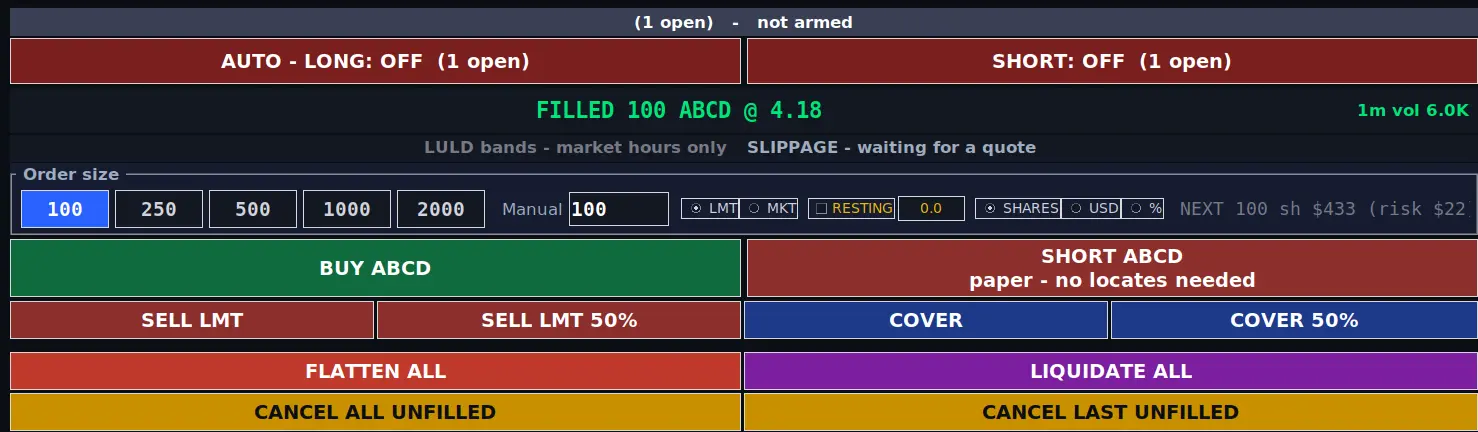
The header and button rows


| Item | What it does | More |
|---|---|---|
| Equity / Buying power | Your broker account's equity and buying power when live; the virtual wallet in paper. Click Equity in paper to load a test balance. | Paper |
| REALIZED NET | Today's closed profit or loss after costs, for the mode you are in (paper or live). | Journal |
| feed status | feed live when market data is flowing, feed down when it is not. | |
| OPEN | Profit or loss on the positions open now. | |
| SYSTEM | The whole-application switch for automatic entries. | SYSTEM |
| SCHED | Left-click turns the paper schedule on or off; right-click sets it up. | Schedule |
| FLEET | Opens the profile fleet. | Fleet |
| PAPER | Paper or live trading. | Live |
| WATCH / TRADE | Arms any ticker you type. | Scanner |
| WINDOWS row | AUTO/BOT, SCANNER, GAPPERS, OPEN, CLOSED, WATCH, HIGHS and NEWS each open in their own resizable window. Closing one loses nothing; the button lights up while it is open. | |
| RISKS, A-, A+ | Risks and disclaimers; smaller and larger text. | Settings |
| DAY TARGET | A dollar target for the day, with an optional give back. Reaching it closes everything and stops automatic entries until the next trading day. | Day target |
| CHART, LADDER | The chart for the armed stock in a browser window; the trade ladder windows, one for the armed stock and one for each stock you hold. | Ladder and chart |
| SYNC BROKER | Imports trades you placed in your broker's own platform into the real journal. Named after your broker. | Journal |
| ANALYSE, JOURNAL | Results by profile; the calendar journal. | Journal |
| CHECK, EXPORT, LAYOUT | Self-check; a zip of the day's files; window layouts. | Settings |
| CLOSE | Closes the program. Open positions are not closed: your broker keeps them and nothing protects them while the desk is closed. Use FLATTEN ALL first if you want to be flat. | |
| MANUAL TRADING | Every setting a manual BUY or SHORT uses, without the automation in view. | Below |
| LOCATES, HOTKEYS, BROKER | The locates window, the hotkey editor, and your broker and commission settings. | Locates, Hotkeys, Broker |
Arm buttons and the status strip
- AUTO - LONG and SHORT arm and disarm the automatic long and short engines, each on its own. Green means armed, red means that side will not open a position by itself; the number in brackets is how many positions are open. Turning one off never asks and never touches open positions. Turning one on checks the risk limits first and then asks you. See arming.
- The large line shows the armed stock and what just happened to it, for example a fill.
- 1m vol is the armed stock's volume so far in the current 1-minute candle, green or red with the candle.
- The LULD part shows the stock's limit-up / limit-down band when one applies (market hours only), or the halt view when it is halted.
- SLIPPAGE is the live spread: the ask minus the bid, in dollars and as a percentage, with the bid and ask beside it. It turns amber when the spread is 1% or more.
Order size row
| Control | What it does |
|---|---|
| Preset buttons | Put that number in the size box. |
| Manual | The size that BUY and SHORT send. Type any number. |
| SHARES / USD / % | What the number means. SHARES is a share count. USD is a dollar amount: the desk divides by the price and rounds down to whole shares. % is a percentage of your buying power (the virtual wallet's in paper, your broker's when live). If the desk does not know your buying power yet, it refuses to size and sends nothing. The presets follow this choice: 500 is 500 shares, $500 or 50%. |
| NEXT | What the next BUY or SHORT would send at the current price: shares, cost and the risk to your stop. |
Limit or market (LMT / MKT)
- LMT (the standard) sends a limit order priced through the market by your entry offset, so it fills like a market order but never worse than the price plus the offset. It works in every session: premarket, market hours and after hours.
- MKT sends a market order. Market orders only work in regular hours, 09:30 to 16:00 New York time. Outside those hours the click is refused and the desk tells you why, with regular hours shown in your local time; the tick turns amber while that is the case.
Both go through the same checks: risk limits, the halt refusal, and the other safety checks on the order path.
Resting rail
Tick RESTING and a rail appears on the ladder and the chart at the live price. Drag it, or type the price in the box beside it.
- Below the market, a BUY can rest there (green). Above the market, a SHORT can rest there (red). A limit on the wrong side of the market would fill at once, so the rail's position decides which side can rest; dragging it through the price flips it.
- The BUY and SHORT buttons then say RESTING or NOW, so you can see which you are about to send.
- On a maker/taker commission schedule a resting fill can be commission-free; one that crosses the market is not. A resting order may never fill: that is the trade-off.
- The resting rail is for manual entries only. Automation and the fleet price their own entries.
BUY and SHORT
BUY LONG and SHORT are faded until a stock is armed, then read BUY ABCD and SHORT ABCD. They send the size from the order size row as a limit or market order, as the LMT / MKT tick says. They send straight away and do not ask for confirmation.
The second line on SHORT shows the borrow status for the armed stock: locates: 300, easy to borrow - no locate needed, no locates available, not shortable, checking borrow..., or in paper paper - no locates needed.
Manual orders are not blocked by the automation settings. They still pass the risk limits (live only), and the desk refuses a new entry on a halted stock.
The MANUAL TRADING window
MANUAL TRADING opens every setting a manual BUY or SHORT uses, long on the left and short on the right. They are the same settings the AUTO/BOT window holds, with the automatic entry rules left out of the way, and a change takes effect on the next order.
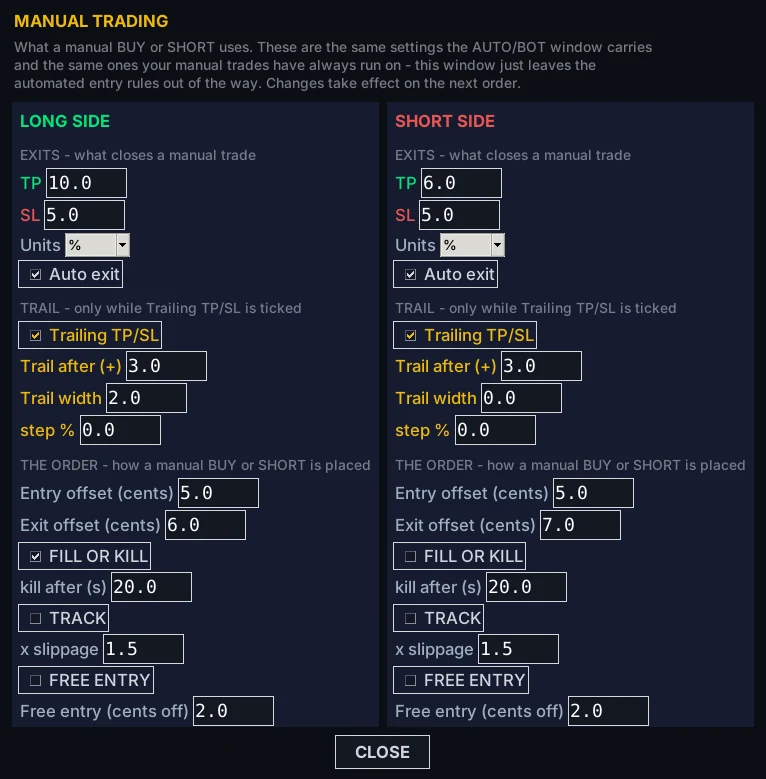
- EXITS: take profit and stop loss in your units (a percentage of the entry price, or dollars for the whole position), and Auto exit for that side. Untick it and no software exit runs for that side; only you can close those trades.
- TRAIL: works only while Trailing TP/SL is ticked. Trail after is how far ahead the trade must be before trailing starts, Trail width how far behind the best price it follows (0 uses the stop loss distance), and a step % turns it into a step lock instead.
- THE ORDER: entry and exit offsets in cents, FILL OR KILL with how long to wait, TRACK, FREE ENTRY and the slippage multiplier. They are explained under order handling.
In Lite this window is the heart of the desk. In the full desk it is the quickest way to tune manual trading without the automation in view.
The eight buttons
The eight buttons under BUY and SHORT can be changed in the HOTKEYS window (action, label, colour, size, order type and offset). Out of the box they are:
| Button | What it does |
|---|---|
| SELL LMT | Sells your whole long position in the armed stock with a limit priced through the market. |
| SELL LMT 50% | Sells 50% of the long position. |
| COVER | Buys back your whole short position in the armed stock. |
| COVER 50% | Buys back 50% of the short position. |
| FLATTEN ALL | Closes every open position, including fleet positions. Automation stays armed and the fleet keeps running. |
| LIQUIDATE ALL | The full stop: disarms both automatic engines and every fleet slot, cancels every open order, then closes every position. |
| CANCEL ALL UNFILLED | Asks your broker to cancel every working order on the account. Positions are not touched. |
| CANCEL LAST UNFILLED | Cancels the most recent working order this desk sent, and nothing else. It does not reach the broker while paper is on. |
FLATTEN ALL, LIQUIDATE ALL and the two cancels act on the whole account including the fleet. The other buttons act on the armed stock.
Ask before sending and double-click
- Ask before sending shows a yes/no box before you close or cancel: closing a position, FLATTEN ALL, LIQUIDATE ALL, cancelling orders, and before a double-click send. It does not ask on BUY, SHORT or their hotkeys, and automatic entries never ask (arming is their gate).
- Double-click sends orders is off by default: double-clicking a scanner, watchlist or gapper row only arms that stock. When ticked, the same double-click also sends a buy at your order size.
Both are saved with the profile.
When an order is refused
- Order REFUSED - bigger than buying power. Orders bigger than your buying power are still sent, and the broker decides. If the broker refuses one for buying power, a window says what the order needed, your buying power as the desk last read it and how long ago, and the most shares that would fit.
- Order REFUSED - needs locates. If the broker refuses a short for locates or borrowing, a window shows the order, the borrow status, the locates you hold and the broker's message. It opens every time for a manual short, and once per stock per session for an automatic one.
- Every refusal is also written in the order log with the broker's reply.
Open trades window
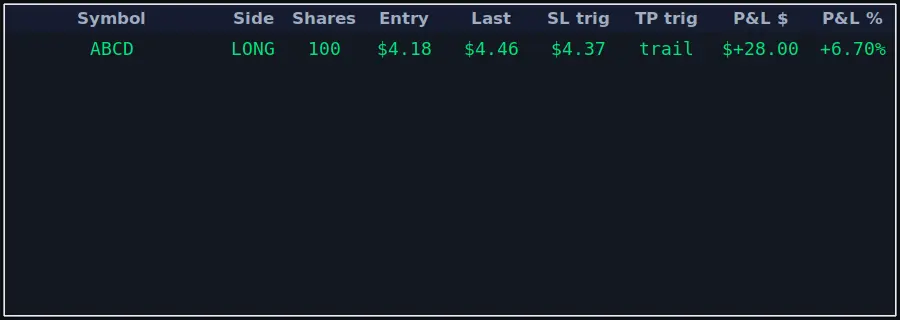
The OPEN window lists your open positions: symbol, side, shares, entry, last price, the stop-loss and take-profit trigger prices, and profit or loss in dollars and percent. Double-click a row to close that position.
Hotkeys
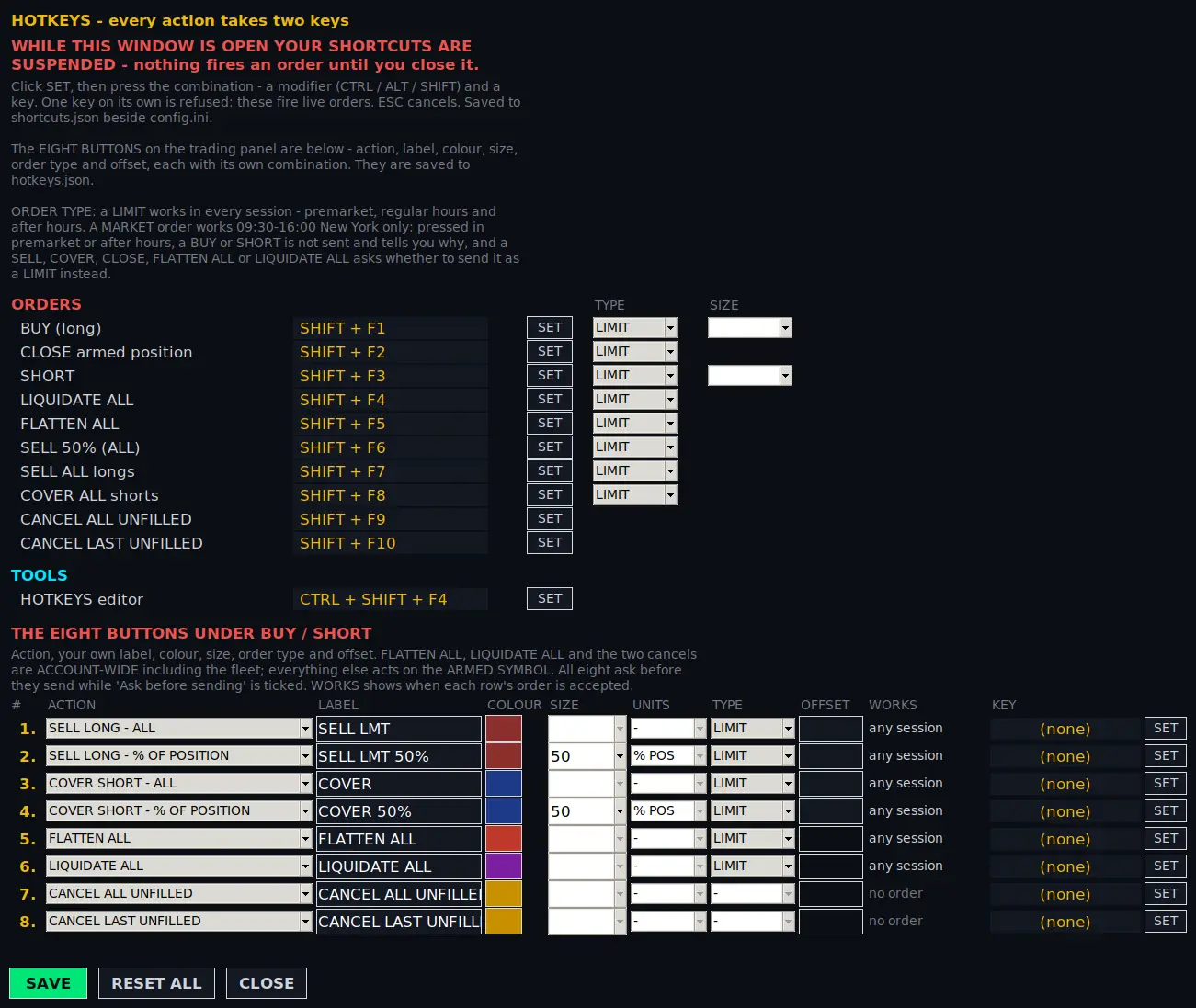
Every action has a shortcut of at least two keys (a modifier such as SHIFT, CTRL or ALT, plus a key). A single key is refused because these keys send live orders. Hotkeys never fire while you are typing in a box. CTRL+SHIFT+F4 opens the window where you change them.
| Default key | Action |
|---|---|
| SHIFT+F1 | BUY (long) the armed stock |
| SHIFT+F2 | CLOSE the armed position |
| SHIFT+F3 | SHORT the armed stock |
| SHIFT+F4 | LIQUIDATE ALL |
| SHIFT+F5 | FLATTEN ALL |
| SHIFT+F6 | SELL 50% (ALL) - half of every long you hold, not just the armed one |
| SHIFT+F7 | SELL ALL longs |
| SHIFT+F8 | COVER ALL shorts |
| SHIFT+F9 | CANCEL ALL UNFILLED |
| SHIFT+F10 | CANCEL LAST UNFILLED |
Window and tool shortcuts open a window and can never place an order, so they are not listed in the HOTKEYS window.
| Key | Opens |
|---|---|
| CTRL+1 ... CTRL+7 | SCANNER, GAPPERS, OPEN TRADES, CLOSED TRADES, WATCHLIST, NEW HIGHS, NEWS |
| CTRL+8, CTRL+9, CTRL+0 | LADDER, CHART, JOURNAL |
| CTRL+SHIFT+F1 ... F3 | CHECK, EXPORT session, SYNC broker |
| CTRL+SHIFT+F4 | The HOTKEYS window |
| CTRL+SHIFT+F5 | The AUTO/BOT window |
| CTRL+SHIFT+F6 | ANALYSE |
The bare keys F1 to F5 used to send orders in much older releases. They are still caught, but they only tell you which two-key shortcut replaced them - they never send anything.
Which position a key acts on. BUY, SHORT and CLOSE act on the armed symbol - the one named on the BUY and SHORT buttons. SELL ALL longs, COVER ALL shorts, SELL 50% (ALL), FLATTEN ALL, LIQUIDATE ALL and the two cancels are account-wide, the fleet included. While Ask before sending is ticked in the trading panel, each one still asks first.
Your order shortcuts are saved in shortcuts.json and the eight buttons in hotkeys.json, both beside config.ini, so they survive a restart and an upgrade.
Using the HOTKEYS window
- While the window is open your shortcuts are suspended: nothing fires an order until you close it.
- Press SET beside an action, then press the key combination. If the combination is already used, the desk asks whether to move it. Escape cancels.
- TYPE sets LIMIT or MARKET for each order action. A LIMIT works in every session. A MARKET order works 09:30-16:00 New York time only: pressed outside those hours, a BUY or SHORT is not sent and tells you why, and a SELL, COVER, CLOSE, FLATTEN or LIQUIDATE asks whether to send it as a LIMIT instead.
- SIZE (BUY and SHORT) can be a fixed number of shares, or blank to use the order size row.
- The eight buttons table changes the buttons under BUY / SHORT: ACTION (each action is listed once), your own LABEL, COLOUR, SIZE and UNITS (shares, or a percentage of that position), TYPE, OFFSET and its own KEY. OFFSET takes cents, or a percentage written with
%, and an exit can take both (written3+1%) and goes at whichever is further through the market; it is greyed where the button prices nothing of its own. SIZE is greyed on actions that take the whole position. WORKS reads any session for a limit and 09:30-16:00 NY for a market order, and turns amber while market orders are closed. - SAVE keeps your changes for the next session. RESET ALL puts the defaults back (nothing is written until you save). CLOSE closes without saving.
Short selling and locates
To short a hard-to-borrow stock, your broker must first find shares for you to borrow: a locate. Easy-to-borrow stocks need no locate. What the desk can do depends on your broker: a broker without a locate service in the desk shows that in the window, and nothing is requested.
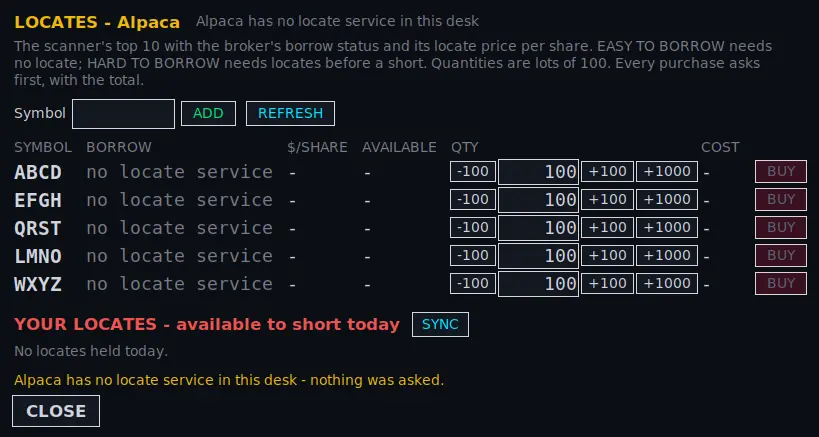
- The LOCATES window lists the scanner's top 10 with your broker's borrow status (EASY TO BORROW or HARD TO BORROW) and locate price per share.
- Type any symbol and press ADD; REFRESH asks again for every row.
- Quantities are in lots of 100. BUY always asks first, with the total cost.
- YOUR LOCATES lists the locates you hold today. SELL sells unused locates back where the broker allows it; SYNC reads the locates your broker says you hold.
- In paper, prices are shown and nothing is bought; paper shorts need no locates.
Locates you hold show on the scanner in the Loc column, with a dark red row, and on the SHORT button's second line. A stock you hold locates for reads HARD TO BORROW rather than not shortable, and a short is sent when your locates cover its size. A short bigger than your locates is refused, and the order log gives both numbers so you can buy the rest or cut the size. On a live short, the automation's size is also capped by your locates.
In the AUTO/BOT window, Locates for armed with SET and CLEAR lets you record locates you obtained elsewhere, so a short can use them.