AutoScanTrade Lite
The scanner and the desk. You place every trade.
Lite is AutoScanTrade without the automation. You get the same live scanner for premarket, market hours and after hours, the same trading panel and hotkeys, the trade ladder and the chart, and every stop, target and trailing exit for the trades you place yourself. Nothing in Lite ever opens a trade on its own.
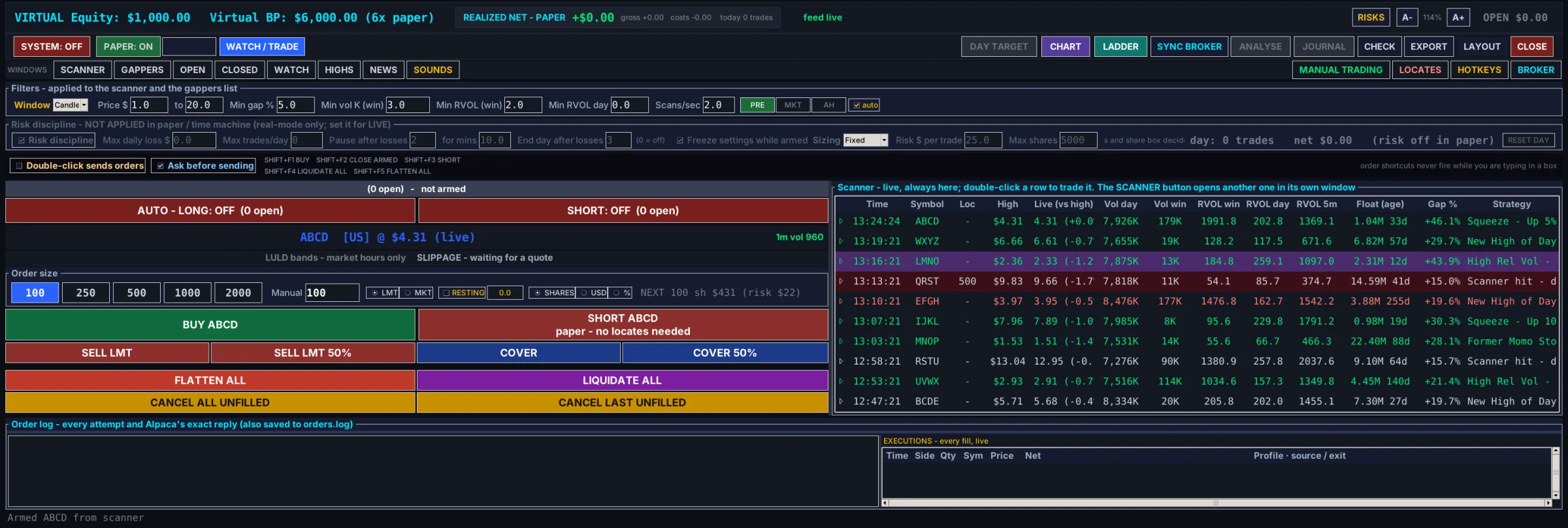
What Lite is
Lite is for traders who want a fast scanner and a fast way to trade what it finds, and who make every decision themselves. It is the same program as the full desk with one group of features switched off: the part that trades without you. Everything you look at and everything you press works exactly as it does in the full version, on the same engine.
A scanner for every session
Filters for price, gap, volume and relative volume, with a separate set for premarket, market hours and after hours. Every alert gets its own row, with halts, float and its age, news and SEC filings.
Scanner filters in LiteOne panel, two-key hotkeys
Pick a size in shares, dollars or percent, choose limit or market, then buy, short, sell, cover, flatten or cancel with one click or a hotkey you set. Locates for short selling are one click away.
BUY and SHORTYour exits, your settings
MANUAL TRADING holds every setting a manual trade uses: take profit and stop loss in percent or dollars, the auto exit, the trailing stop and step lock, and how each order is placed. Long and short side by side.
The MANUAL TRADING windowThe ladder and the chart
Every trade sits on a price rail with its entry, stop, target and trail, and what each is worth. Drag a level to move it. The chart in your browser draws the same levels, with indicators and signal arrows.
The trade ladderLimits and paper mode
The risk row sets a daily loss limit, trade caps and losing-streak pauses for live trading. Paper mode fills your orders against live prices from a virtual wallet, so you can practise before any real money is involved.
Paper mode and going liveA record of every order
The order log shows what was sent, what your broker replied, what filled and what was refused. The CLOSED window lists each closed trade with its costs and the reason it closed. The JOURNAL window is part of the full desk.
The order logHow to use it
A first session, from opening the program to going live. Each step has a short video, recorded on Lite itself.
Read the risks, then agree
On the first start the risks and disclaimers window opens. Read it, tick the box confirming your stops are software stops, and agree. RISKS in the header opens it again whenever you like.
Add your data key
Enter your Alpaca market-data key, choose the SIP or IEX feed and press TEST DATA. Broker keys for live orders can wait. Everything is saved in a settings file on your own PC.
Start in paper
Lite always opens in paper mode: live prices, and a virtual wallet. Check the header says feed live before you start.
Set your scanner filters
Price, gap, volume and relative volume, with a set for premarket, market hours and after hours. Tick auto and the sets switch with the market clock.
Set your exits once
Open MANUAL TRADING and set take profit, stop loss and their units, the auto exit and the trailing stop, for longs and for shorts. Every BUY and SHORT you press uses them.
Pick a stock
Click a scanner row, or type any ticker into the box beside WATCH / TRADE. The trading panel, the ladder and the chart all follow it.
Choose a size, then buy or short
Set the size, choose LMT or MKT, and press BUY or SHORT, or a two-key hotkey. An entry goes in one click, with no confirmation box.
Watch it on the ladder and chart
The ladder shows your entry, stop, target and trail, and what each one is worth at that price. Drag a level to move it.
Close it your way
Let your exits close the trade, or press SELL or COVER, the 50 percent buttons, or FLATTEN ALL for everything at once.
Read back the session
CLOSED lists each trade with its costs and the reason it closed, and the order log keeps every order with your broker's exact reply.
Go live when you are ready
When you are flat, press PAPER: ON and enter your six-digit code. The risk row applies when you are live, and your stops run only while Lite is running.
See Lite in two minutes
A walk round AutoScanTrade Lite: the scanner, the trading panel, MANUAL TRADING, the ladder and chart, the risk row and the record of your trades, filmed on the real program in paper mode.
There are 47 Lite videos, each with a 30-second version for a phone.
Browse the Lite videosLite videos
Every video below was recorded on AutoScanTrade Lite, so what you see is what you get.
Start here
 AutoScanTrade Lite - the manual trading desk in two minutes2:00 · 0:30
 How AutoScanTrade Lite fits together - scan, pick, trade, exit, review2:00 · 0:30
 AutoScanTrade Lite and the full desk - what is the same, what the full desk adds2:00 · 0:30
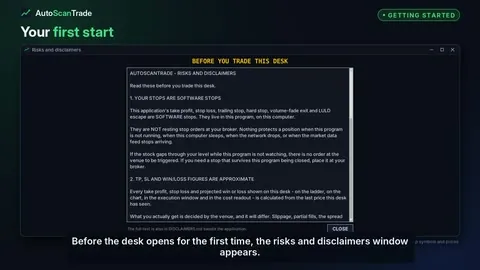 Getting started with AutoScanTrade Lite - first start, keys and paper mode2:00 · 0:30
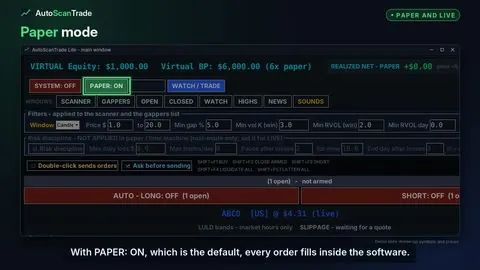 Paper mode, going live, and what SYSTEM means in Lite2:00 · 0:30
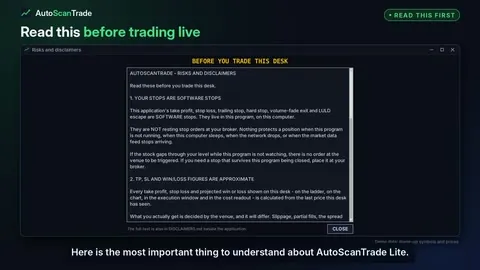 Software stops - what to know before trading live with Lite2:00 · 0:30
Scanner and market lists
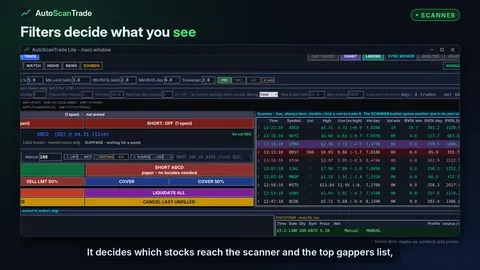 Scanner filters - price, gap, volume and relative volume2:00 · 0:30
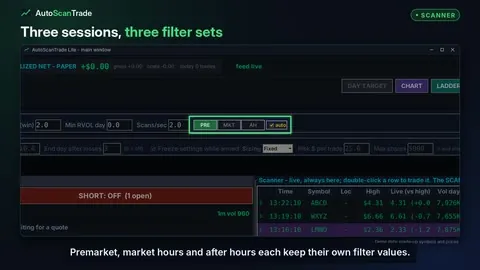 Session sets - PRE, MKT, AH and auto2:00 · 0:30
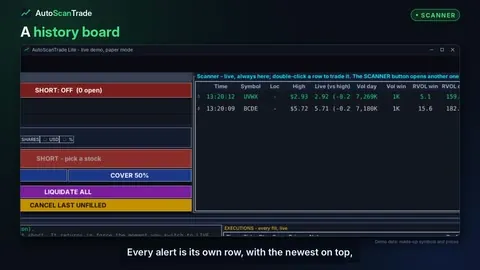 The scanner board - every alert, its own row2:00 · 0:30
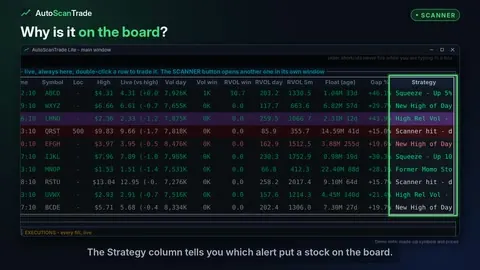 Scanner alert types - what each Strategy means2:00 · 0:30
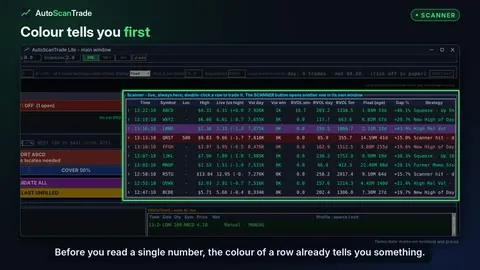 Scanner row colours - what green, purple, red and yellow mean2:00 · 0:30
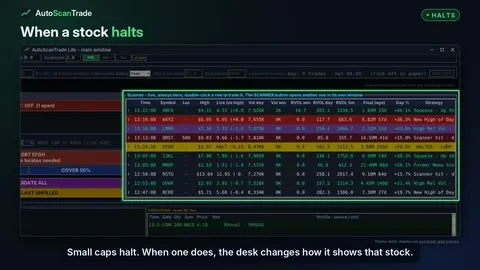 Halted stocks - how the desk shows a halt2:00 · 0:30
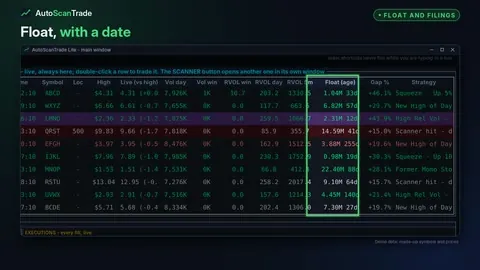 Float with its age, and where a stock files from2:00 · 0:30
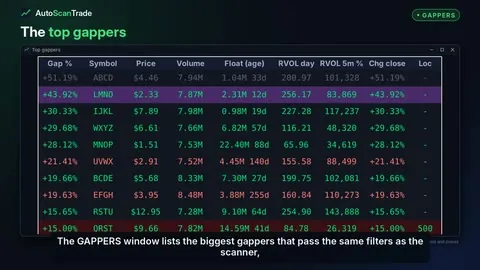 Top gappers - the biggest gappers that pass your filters2:00 · 0:30
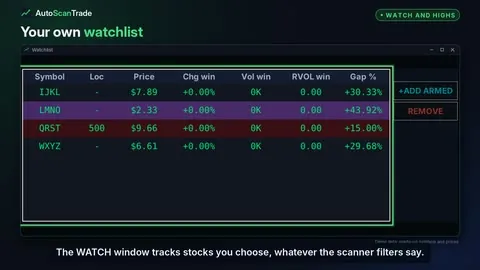 Watchlist and new highs2:00 · 0:30
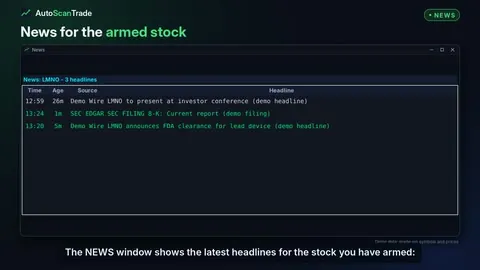 News and SEC filings for the stocks you watch2:00 · 0:30
Trading panel and hotkeys
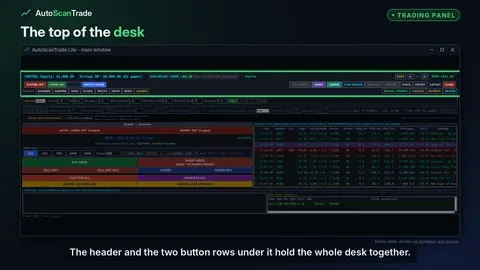 The header and button rows - a tour of the top of the Lite desk2:00 · 0:30
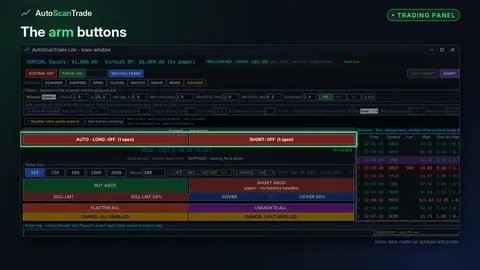 The top of the trading panel - open counts, 1m volume, LULD and slippage2:00 · 0:30
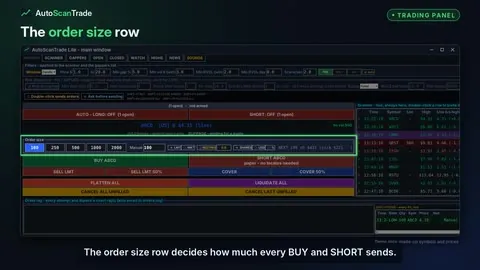 Order size - shares, dollars or percent of buying power2:00 · 0:30
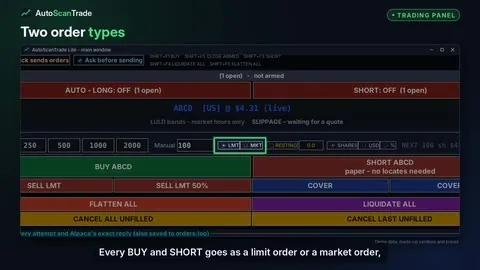 Limit or market - LMT and MKT orders, every session2:00 · 0:30
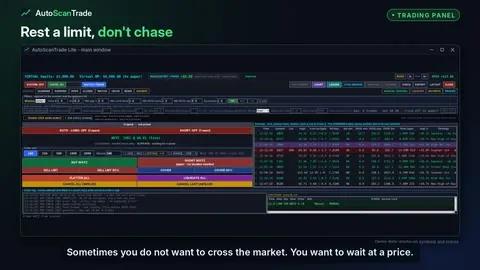 The resting rail - a limit entry you drag into place2:00 · 0:30
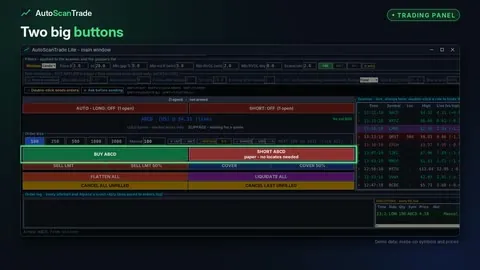 BUY and SHORT - one click, no confirmation box2:00 · 0:30
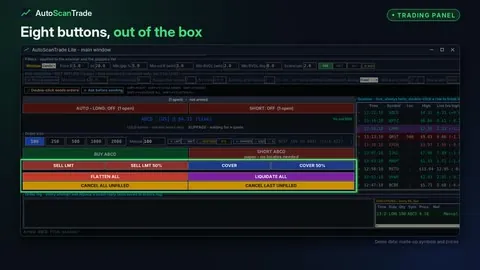 The eight buttons - sell, cover, flatten, liquidate and cancel2:00 · 0:30
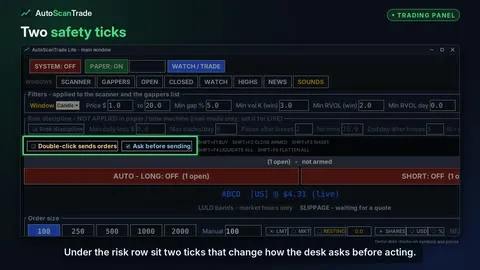 Ask before sending, double-click, and when an order is refused2:00 · 0:30
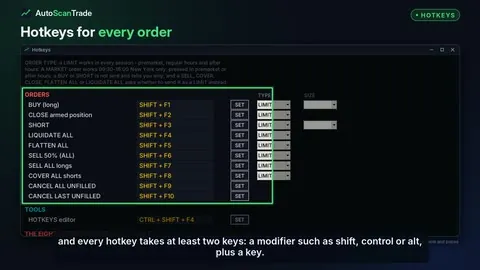 Hotkeys - two-key shortcuts for every order2:00 · 0:30
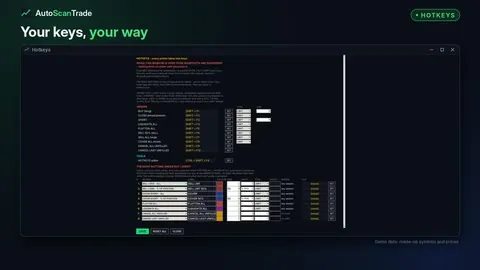 The HOTKEYS window - set your keys and your eight buttons2:00 · 0:30
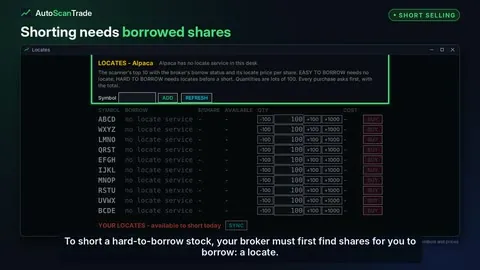 Short selling and locates2:00 · 0:30
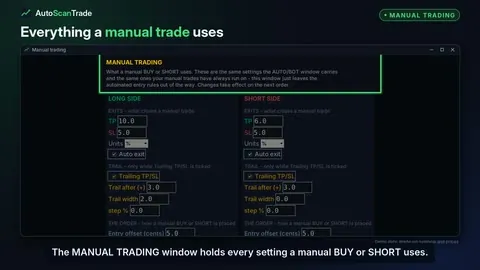 The MANUAL TRADING window - every setting a manual trade uses2:00 · 0:30
Trade ladder and chart
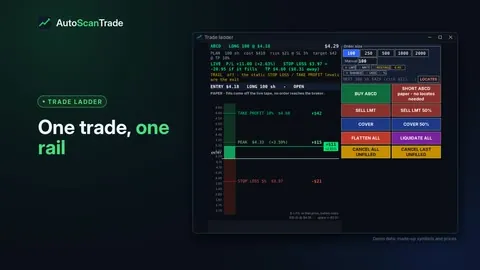 The trade ladder - one trade on one price rail2:00 · 0:30
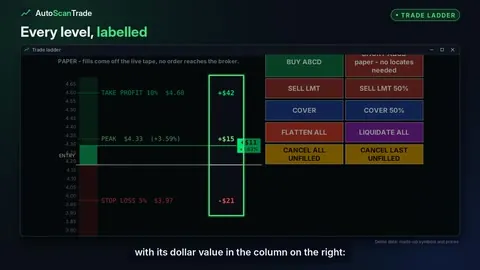 Ladder levels - take profit, stop loss, peak, and dragging them2:00 · 0:30
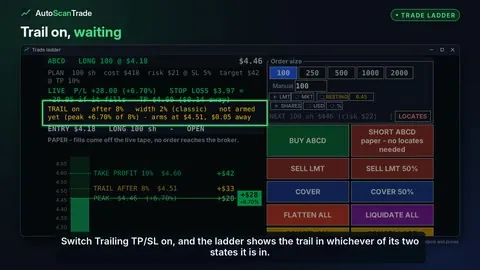 The trailing stop on the ladder - waiting, then running2:00 · 0:30
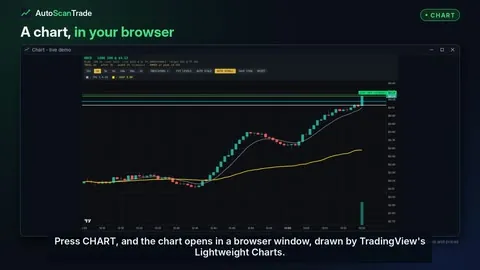 The chart - candles, your levels and the live result2:00 · 0:30
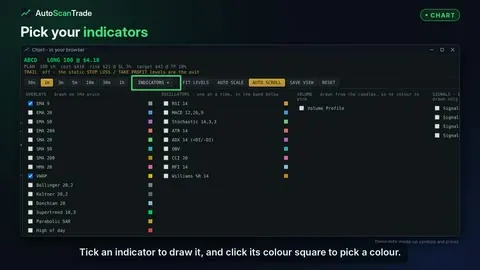 Chart indicators - overlays, oscillators and volume profile2:00 · 0:30
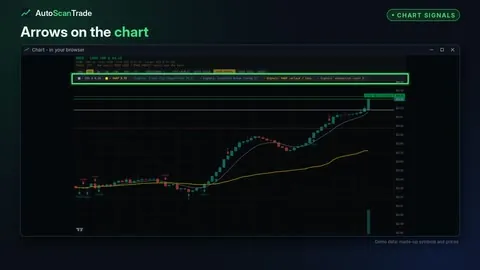 Chart signals - trend flip, structure break, VWAP reclaim and exhaustion2:00 · 0:30
Exits and risk controls
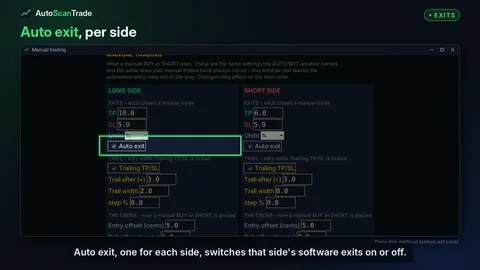 Auto exit and units - percent or dollars2:00 · 0:30
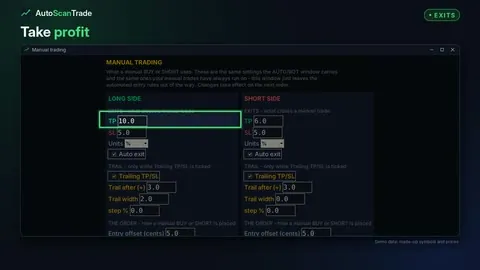 Take profit and stop loss2:00 · 0:30
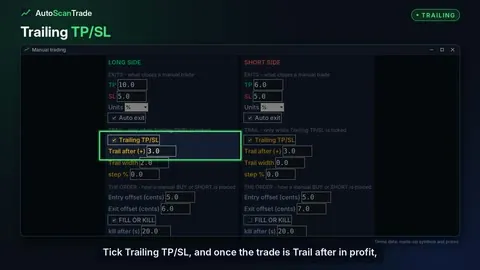 The trailing stop - trail after and trail width2:00 · 0:30
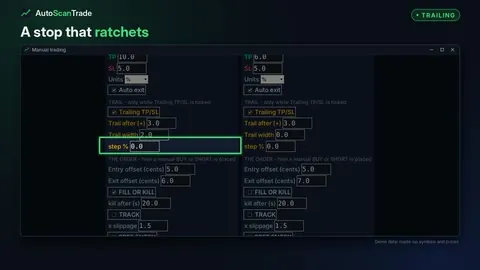 The step lock - a stop that ratchets in steps2:00 · 0:30
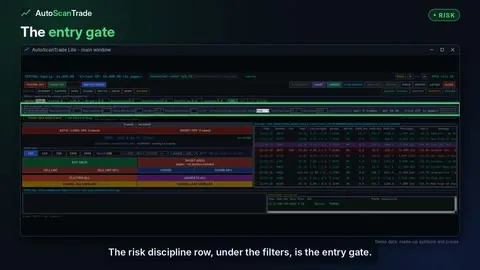 Risk discipline - daily loss, trade caps and losing streaks2:00 · 0:30
Trades and the order log
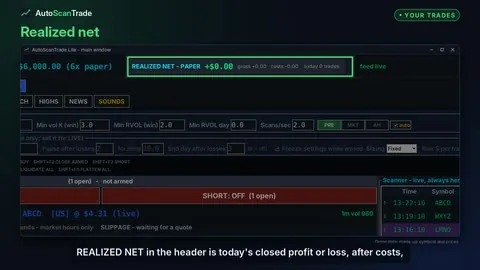 Realized net, open trades and closed trades2:00 · 0:30
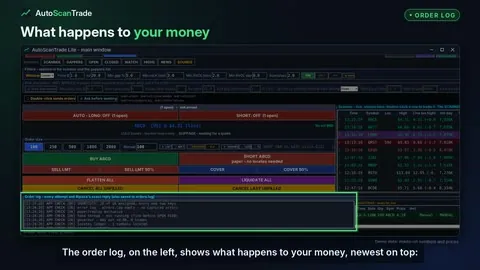 The order log and executions - every order and every reply2:00 · 0:30
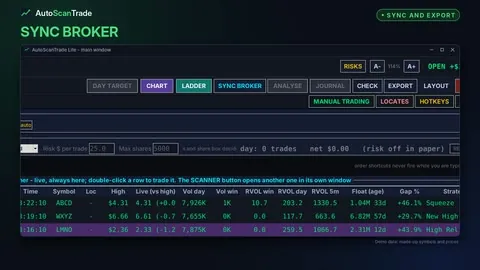 SYNC BROKER, EXPORT, and paper kept apart from live2:00 · 0:30
Broker, keys and settings
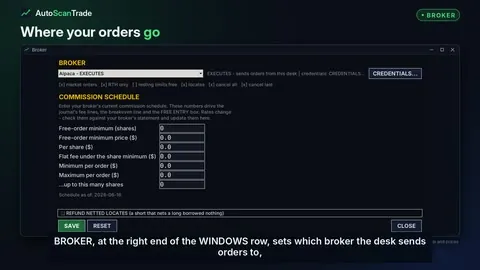 The BROKER window and your commission schedule
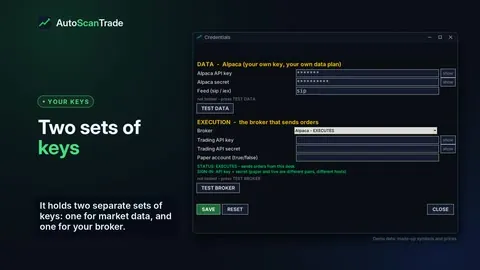 Credentials - your data key and broker keys stay on your PC
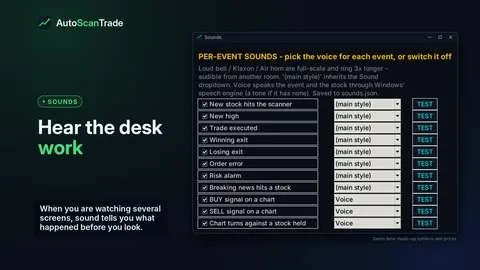 Sounds - a voice for every event
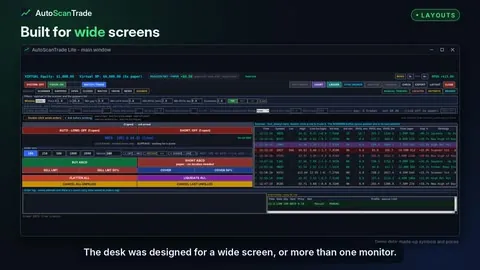 Layouts and text size - fit the desk to your screens
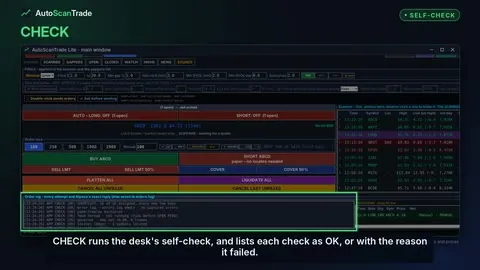 CHECK, the risks window, and the clock
Lite or the full desk
Both are one program. A small file beside it says which version you have, and the limits are checked inside the program, not just by hiding buttons.
| Feature | Lite | Full desk |
|---|---|---|
| Scanner, gappers, watchlist, new highs, news | Yes | Yes |
| Trading panel, hotkeys, locates | Yes | Yes |
| MANUAL TRADING, take profit, stop loss, trailing stop, step lock | Yes | Yes |
| Trade ladder and chart with indicators and signal arrows | Yes | Yes |
| Risk row, paper mode, order log, CLOSED and OPEN windows | Yes | Yes |
| AUTO/BOT: entry rules, filters and chart-signal entries | No | Yes |
| Arming a side to trade on your rules | No | Yes |
| Profile fleet and the paper schedule | No | Yes |
| JOURNAL, ANALYSE and DAY TARGET windows | No (buttons shown greyed) | Yes |
Moving up later changes nothing on your computer except which features answer. Your settings, layout and watchlist stay where they are. Lite in the user guide · the video
Questions about Lite
Short answers. The user guide has the detail.
Does AutoScanTrade Lite ever trade by itself?
No. Every order in Lite is one you press. The automation, arming a side, the profile fleet and the paper schedule belong to the full desk. In Lite they are not drawn, and the program refuses them even if a hotkey or an old saved setup asks.
Are the stops and targets the same as in the full desk?
Yes. Take profit, stop loss, the trailing stop and the step lock run on the same exit engine. They are software stops: the program watches the price and sends the exit, so nothing protects a position while it is closed. More on software stops.
Does Lite keep a record of my trades?
Lite shows your trades in the order log, which keeps every order and your broker's reply, and in the CLOSED window, which lists each closed trade with its costs and the reason it closed. The JOURNAL and ANALYSE windows, for reading your trade history back, are part of the full desk and are not in Lite.
Can I move from Lite to the full desk later?
Yes. They are the same program, so nothing is reinstalled or migrated. Your settings, layout and watchlist stay where they are.
Which brokers and market data does Lite use?
The same as the full desk: orders go to TradeZero or Alpaca, and market data comes from Alpaca on your own key and data plan, with the SIP or IEX feed.
Can I try Lite without a broker account?
Yes. Paper mode trades against live prices with a virtual wallet, and no order reaches a broker. Lite always starts in paper mode.
Launching soon
Email us and we will tell you when AutoScanTrade Lite is available.